
iCloud Storage Plans 2026: Complete Guide & Comparison
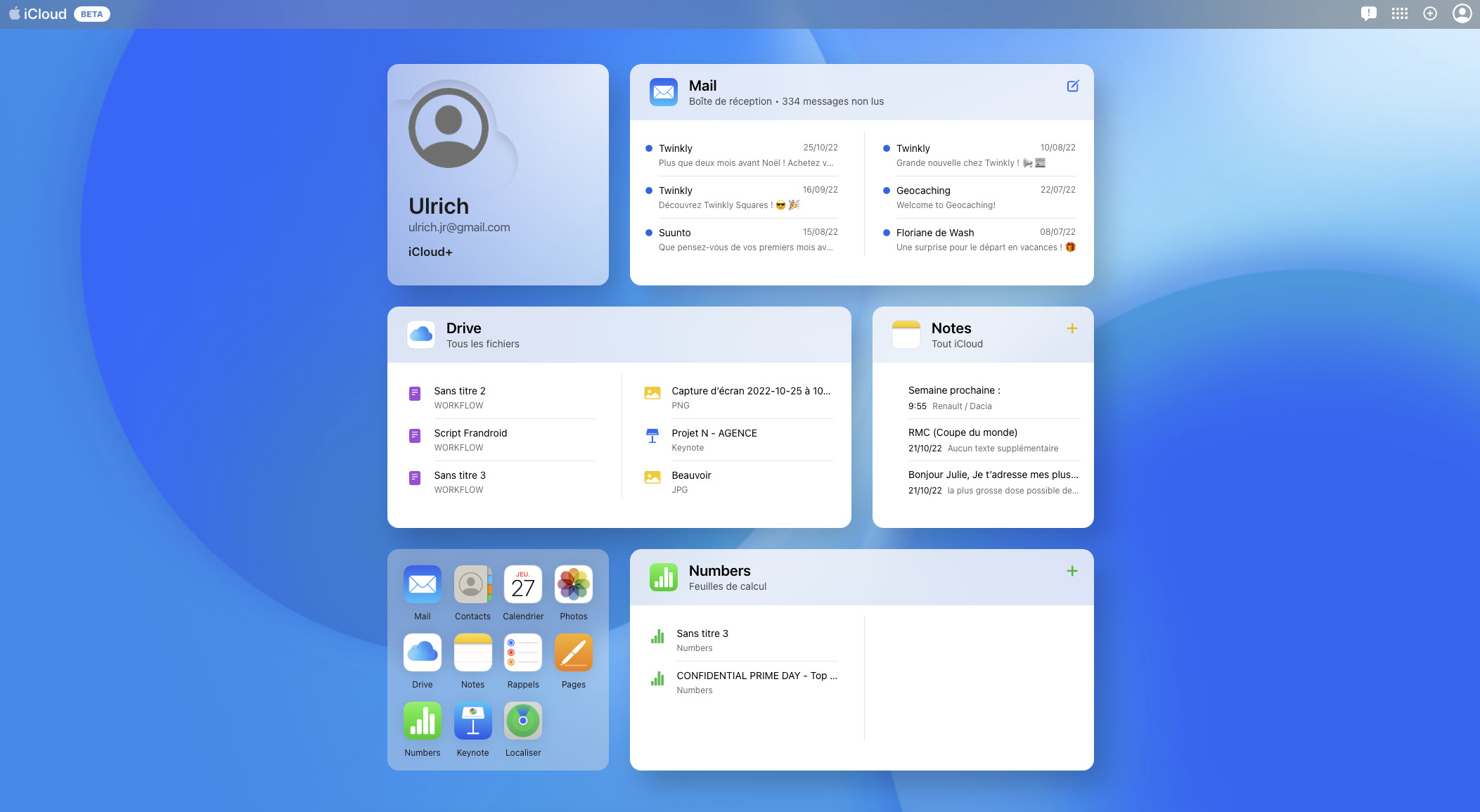
iCloud storage is essential for every Apple user. Whether you're backing up your iPhone, storing photos, or syncing documents across devices, having the right iCloud storage plan makes all the difference.
In this complete guide, we'll compare all iCloud storage plans for 2026, help you choose the best one for your needs, and share expert tips to save money and maximize your storage.
☁️ iCloud Storage Plans Overview
Apple currently offers four iCloud storage tiers:
📦 5GB — Free (Base Plan)
- Price: $0/month
- Included with: Every Apple ID
- Best for: Light users who only sync contacts, calendars, and basic iCloud Drive files
- Warning: 5GB fills up quickly with iPhone backups and photos
📦 50GB — $0.99/month
- Price: $0.99/month (≈ $12/year)
- Best for: Individual users who take photos, need regular backups, and use iCloud Drive
- Ideal for: Most iPhone users
📦 200GB — $2.99/month
- Price: $2.99/month (≈ $36/year)
- Best for: Families (can share with up to 5 people) or heavy photo/video users
- Included: Family Sharing support
📦 2TB — $9.99/month
- Price: $9.99/month (≈ $120/year)
- Best for: Large families, content creators, or users with massive photo/video libraries
- Included: Family Sharing support
📊 Comparison Table
| Plan | Monthly | Yearly | Family | Best For |
|---|---|---|---|---|
| 5GB | $0 | $0 | ❌ | Light users |
| 50GB ⭐ | $0.99 | $12 | ❌ | ⭐ Most Individuals |
| 200GB 👨👩👦 | $2.99 | $36 | ✅ | ⭐ Best for Families |
| 2TB | $9.99 | $120 | ✅ | Heavy users & Pros |
🎯 Which Plan Is Right for You?
👤 I'm a solo user
Recommended: 50GB — It's affordable ($12/year) and gives you enough space for iPhone backups, photos, and iCloud Drive files.
👨👩👦 I have a family
Recommended: 200GB — For just $2.99/month, you can share with up to 5 family members. This is the most cost-effective option for families.
📸 I'm a content creator
Recommended: 2TB — If you shoot 4K video or store large files, the 2TB plan gives you the space you need.
📱 How to Upgrade Your iCloud Storage
On iPhone / iPad
- Open Settings
- Tap [Your Name] at the top
- Tap iCloud
- Tap Manage Storage or iCloud Storage
- Tap Change Storage Plan or Buy More Storage
- Choose your desired plan and confirm
On Mac
- Click the Apple Menu → System Settings
- Click Apple ID → iCloud
- Click Manage → Buy More Storage
- Choose your plan and confirm
💡 10 Tips to Save iCloud Storage
- Optimize iPhone Storage — Go to Settings → Photos → Optimize iPhone Storage to save space.
- Delete old backups — Go to Manage Storage → Backups and delete backups you no longer need.
- Use iCloud Photos with optimization — This keeps full-resolution photos in iCloud and smaller versions on your device.
- Stop backing up unnecessary apps — In Manage Storage → Backups, deselect apps you don't need to back up.
- Clear old iCloud Drive files — Delete files you no longer need.
- Empty Recently Deleted — Photos and files in "Recently Deleted" still count toward your storage.
- Limit Messages — Set messages to delete after 30 days instead of keeping them forever.
- Use shared albums — Shared albums don't count toward your iCloud storage.
- Check your Mail storage — Delete old emails with large attachments.
- Consider upgrading — Sometimes the best solution is simply upgrading to a larger plan.
Upgrade your iCloud storage now →
❓ Frequently Asked Questions
📌 Final Thoughts
Choosing the right iCloud storage plan doesn't have to be complicated. Start with the free 5GB plan, and if you need more space, the 50GB plan ($0.99/month) is an excellent first upgrade. For families, the 200GB plan ($2.99/month) is the best value.
Remember: iCloud isn't just storage — it's the backbone of your Apple ecosystem. Investing in the right plan ensures your data is safe, accessible, and always backed up.
Comments
Post a Comment